Hello,
Welcome to my latest blog post about Azure Virtual Desktop. Microsoft announced a new public preview. The metadata from AVD is being stored in a geographical database within each of the Azure geographies around the globe. For resiliency purposes, these geographical databases store multiple replicas within the same region as well as in a separate, paired region.
With this new preview, Microsoft is deploying new databases in each region that supports AVD. This means that for organizations that have specific data sovereignty requirements can deploy an AVD environment in a specific location.
This new method of hosting the metadata will become the new standard. More info about a migration tool will come later.
This feature first came only with PowerShell, but Tom Hickling shared that the portal support is now also available. You can read the announcement here.
Prerequisites
To enable this feature on your Azure subscription you’ll first have to logon to your environment with the Connect-AZaccount command and select your subscription.
The first step after login is to register the preview feature on your subscription. This can either be done through Powershell or through the portal.
Lets have a look at the PowerShell command first.

The registration process won’t take long.

Be aware, I noticed that the registration state doesn’t update correctly. To see if the preview feature is correctly active, select it to see the correct status.


Note: As you can see in the below screenshots, It can take a while before the preview feature comes in a registered state. In this test it took 10m before it was successfully registered.


When you want to user Powershell, you need to make sure you use the correct version of the Az.DesktopVirtualization module. This is done with the below command.

Now that we have confirmation that the preview feature flag is active on the subscription, we can start testing this feature.
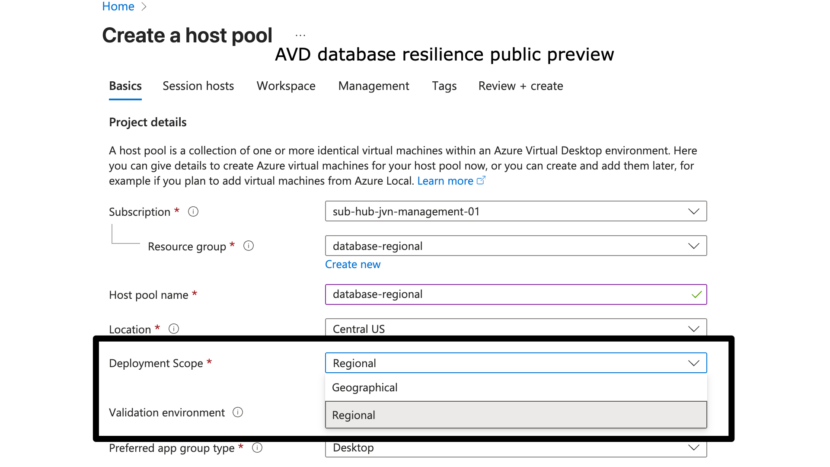
During the host pool deployment, we can now select Deployment Scope. you can select Geographical or Regional.

Important to know that during the preview there are some limitations:
- Automated host pools which enable Session host configuration, Session host update.
- Private Link.
- Dynamic autoscaling.
- App Attach. All App attach objects are Geographical only.
- Errors and checkpoints will not be reported into Log Analytics for regional session hosts.
For example, the Deployment Scope option is gone when you select the Yes to the Preview for Session host configuration.
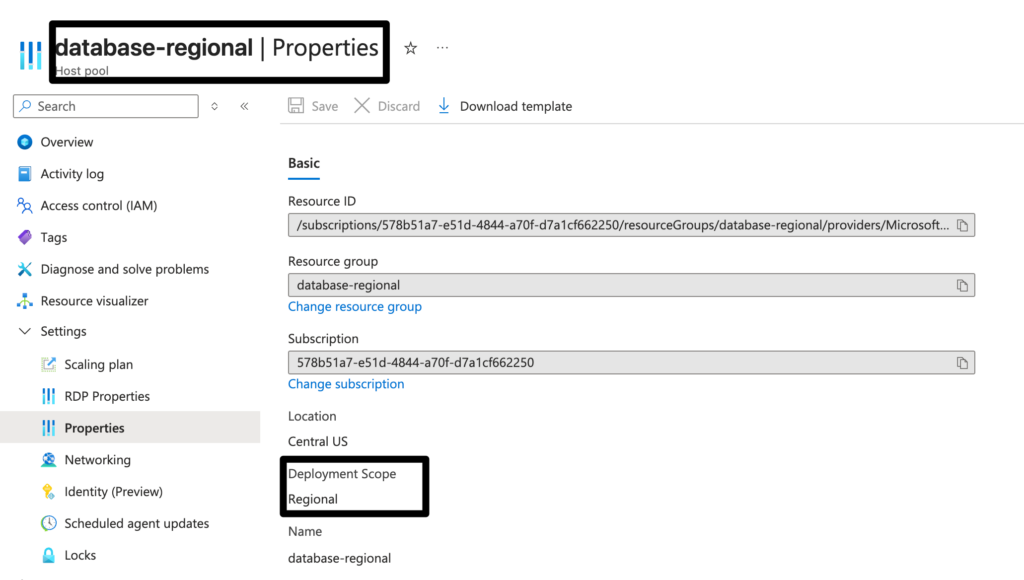
After deployment, we can see that the Deployment Scope is regional when checking the host pool properties.
Currently this feature is only available in 2 regions. East US and Central US but Microsoft will add more regions to the public preview. Stay tuned for updates on this feature when they come available.
Until next time and happy reading.